

Dynamics CRM 2011, Mail Merge Templates showing Quote Information
Vlad Arabajiev, 04 January 2012
In this blog I will show you how to use Mail Merge Templates to display all required quote information for a customer. This process saves you a lot of time, when you are dealing with customers who always require a quote before they buy. All you have to do is produce the quote for the customer, then use the template we will create now and you are done. The template will display all the information the customer requires. Let’s start by creating a Mail Merge Template.
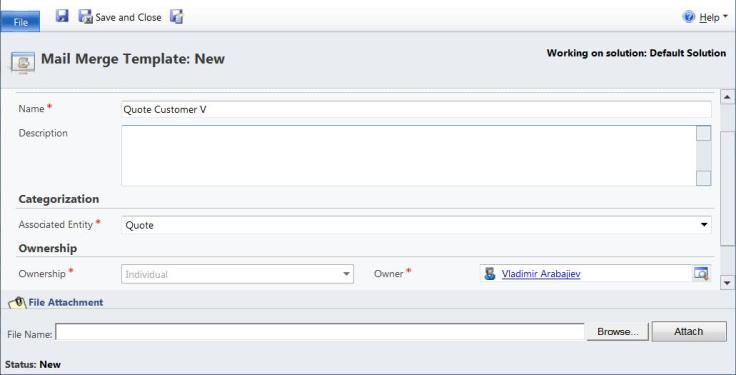
By Saving this record, we can now create the template in Word.
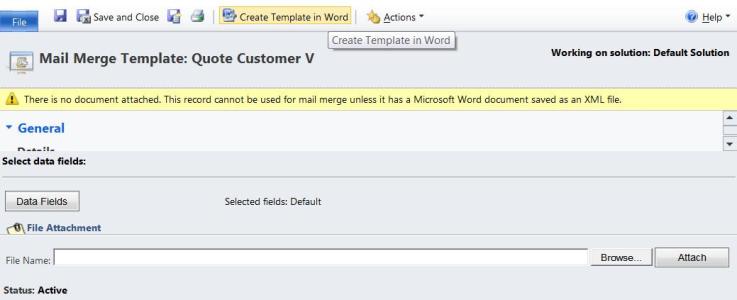
Once you hit the Create Template in Word button, Microsoft Word will open. Then follow the instructions on your screen to proceed further with creating the template.

I have added some images here to make the template look more realistic. You can easily do that, by going to the Insert Tab and adding your desired images.
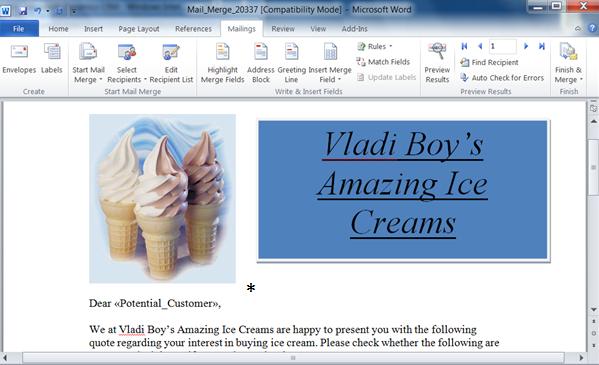
The next step is to add the dynamic values by clicking Insert Merge Filed located under the Mailings Tab. Add all necessary quote information that you would like your template to display in the future.
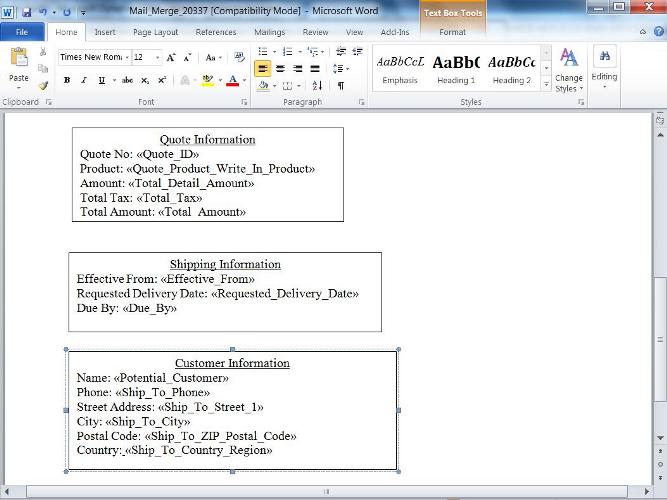
Then make sure you save this file in XML format, this will allows us to import this template into Dynamics CRM 2011. Go back to our template and browse the file and attach it.
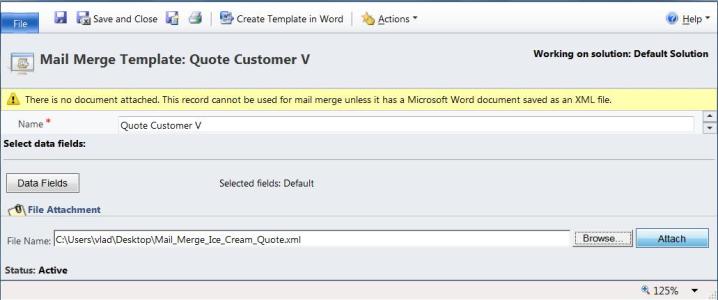
Now that you have attached the file you can click Save and Close and proceed to the quote.
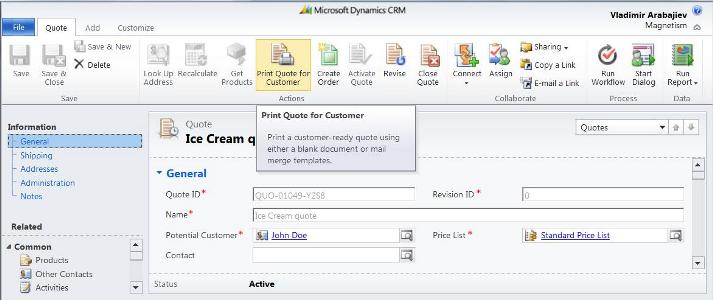
Once you have generated the quote and added a product to it, you can click the Print Quote for Customer button.
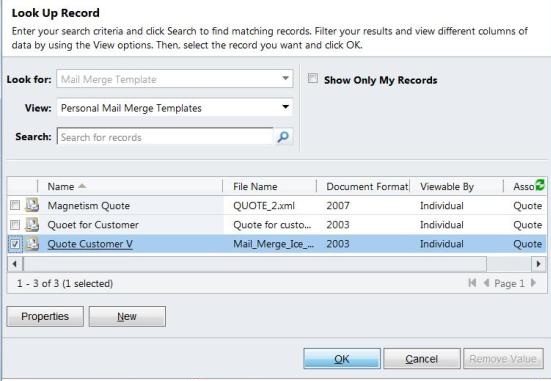
Select from My Personal Templates the template we have just created and click OK.
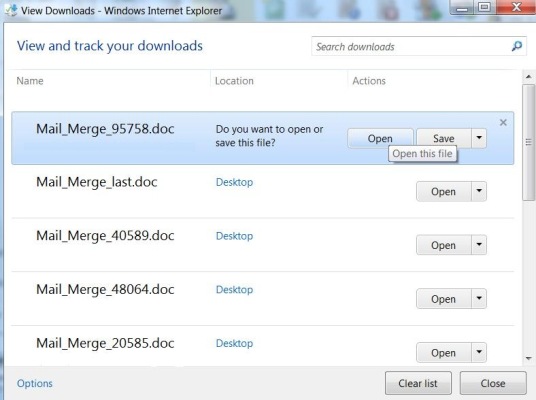
Save the file and Open it.
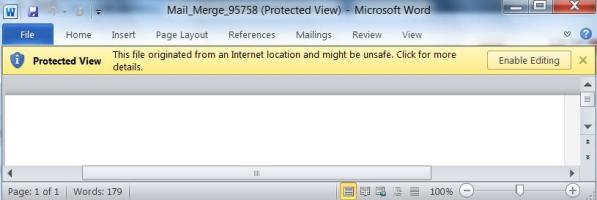
Follow the instructions; click Enable Editing, then CRM.
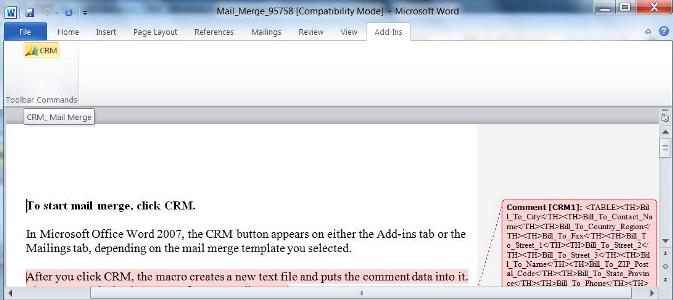
This window shows the Potential Customers for which we are preparing this quote, click OK

Now we can see the dynamic values, however we want to see the details of this particular quote for its customer, click Preview Results to see them.
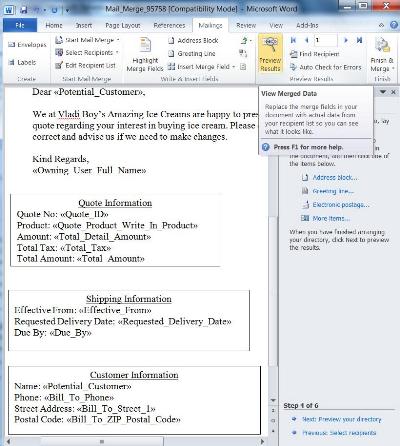
This is the quote and customer information that we were interested in.
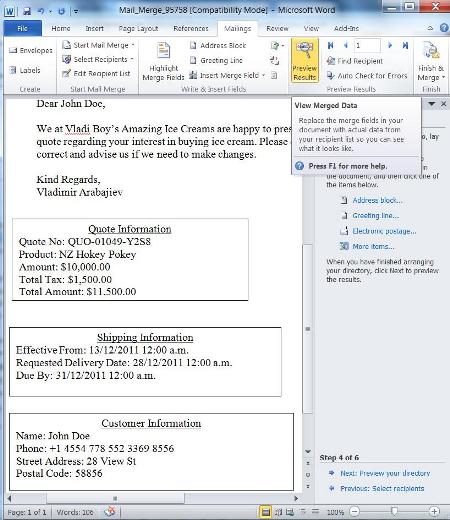
This proves that our template is working and is pulling the correct information. You can now send this information via E-mail to your customer, or you can print it if you like.
I hope you found this blog helpful and easy to follow.
* Image from http://icecreamsuppliers.com/wp-content/uploads/2011/08/soft-serve-ice-cream-supplier.jpg

Category List

Filter by Author
Adam Murchison
Alfwyn Jordan
Arthur Mandisodza
Calum Jacobs
Colin Maitland
David Mochrie
Dominic Liu
Gayan Perera
Harshani Perera
Isaac Stephens
Jaime Smith
Jared Johnson
John Barrencechea
John Eccles
Lauren Withers
Paul Nieuwelaar
Roshan Mehta
Roz Millar
Ryan Blaikie
Ryan Ingram
Sarah Coleman
Sean Roque
Shalane Williams