

Exporting Static Worksheets to Excel in Dynamics CRM 2011
Roshan Mehta, 29 December 2011
Microsoft Dynamics CRM 2011 provides useful tools for reporting and data analysis. In this post we will take a look at the Export to Excel feature and focus on the ability to export “static worksheets”. When a static worksheet is exported from Microsoft Dynamics CRM 2011, it means that the data doesn’t maintain a link back to the system. If you save the worksheet to your desktop and open it again later, the data displayed will only represent the data that was exported at the time.
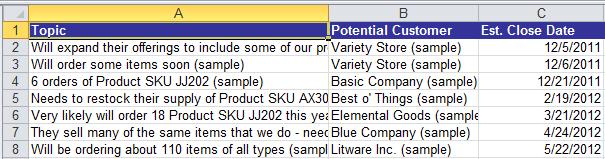
Static worksheets are useful if you want to perform analysis on a subset of your data without the need of having the most up to date information. For example, let’s say you are a sales manager and you want to find out the total estimated revenue for open Opportunities at the end of the week. If you export the data from the system on Friday and then wish to perform the analysis on the data on Sunday, you can be sure that the data will not have changed even if your sales reps have been modifying Opportunities over the weekend.
When we choose to export a list of records to Excel, we are provided with multiple options. Notice in the image below, the Select Columns and Edit Columns buttons are greyed out which means that we cannot select the columns to display in the exported static worksheet nor can we define the sort order. The columns available in the exported worksheet are the ones that are made available in the view from which we are exporting. For example, if the Open Opportunities view included the Topic, Potential Customer, and Est. Revenue columns, the exported worksheet will also contain these columns.
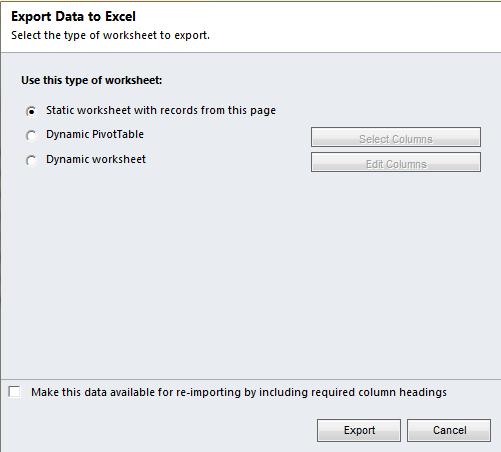
To get around this, users can export data from a custom Advanced Find view in which case they have the ability to add/remove columns.
Another use for static worksheets is the ability to bulk update records. When you export a static worksheet, you are given the option to Make this data available for re-importing by including required column headings. This exports an additional hidden column which stores the unique ID for each exported record. You can then make changes to data in the worksheet and then re-import the worksheet into CRM. After the import process is completed, the records will be updated in CRM.
In my next post, I will explain how CRM users can take advantage of dynamic worksheets and also show the level of control users have in configuring the worksheet columns.
Category List

Filter by Author
Adam Murchison
Alfwyn Jordan
Arthur Mandisodza
Calum Jacobs
Colin Maitland
David Mochrie
Dominic Liu
Gayan Perera
Harshani Perera
Isaac Stephens
Jaime Smith
Jared Johnson
John Barrencechea
John Eccles
Lauren Withers
Paul Nieuwelaar
Roshan Mehta
Roz Millar
Ryan Blaikie
Ryan Ingram
Sarah Coleman
Sean Roque
Shalane Williams