

Hiding System Views for any Entity in Dynamics CRM 2011
Paul Nieuwelaar, 08 December 2011
In Dynamics CRM 2011, by default there are several different views that are configured for some of the main entities, such as Contacts and Accounts. In some cases it is good to keep these default views, as they usually provide some handy information. If you are adding lots of your own views however, you will find that the default views can get in the way, and can confuse users when they are trying to find the relevant views.
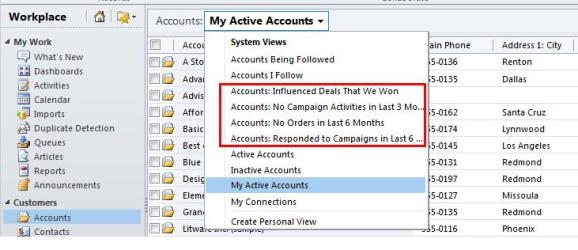
For the purposes of this blog post, I will show how we can hide 4 of the default system views available on the Account entity, which in this case we do not require in our system.
If you have ever attempted to hide these views in the past, the first thing you probably tried (like me) was to simply delete the views. Unfortunately CRM doesn’t exactly let you just delete the system views, as you can only delete unmanaged views (in other words - ones you create yourself).
Instead of deleting the views, and losing them forever, we can actually just ‘Deactivate’ them. This will still remove them from any view lists, but it means you can activate them again at any time in the future if you decide you want to show them again.
To disable a view, open the View customizations area for the entity you want to work with, in our case Accounts. You can deactivate any views that are of Type ‘Public View’. The public views are the ones that show up in the view selectors, so these are the only ones you should want to hide anyway.
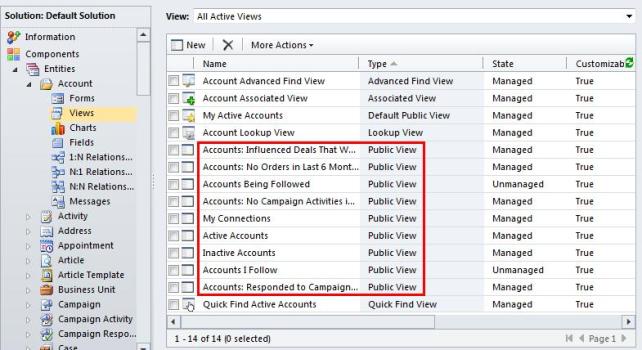
Select the view you wish to deactivate (1 at a time unfortunately), then simply click the ‘More Actions’ menu item from the actions toolbar, and select ‘Deactivate’.
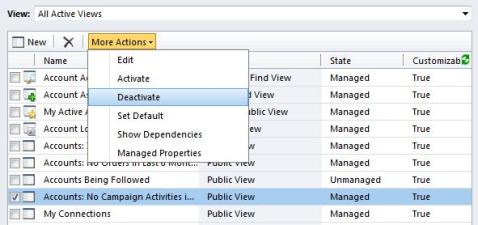
The deactivated view will be removed from the current view. To view the deactivate view, select ‘Inactive Public Views’ from the ‘View’ option set above the grid. Here you will see all the deactivated public views.
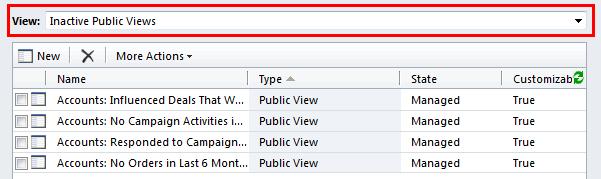
To activate one of these views again, simply select the row, and click ‘More Actions’, and select ‘Activate’. This would then move it back into the active views.
To view your results, navigate back to the Accounts area of CRM (no need to publish). When you click the view selector, you will notice the ‘deactivated’ views have now been removed from the list, and are ‘hidden’ from general users.
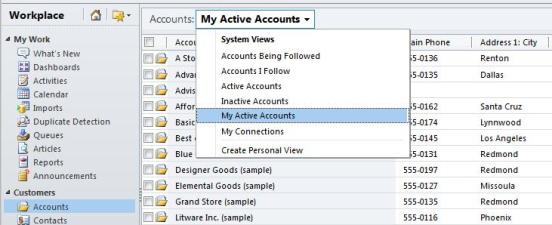
That’s how easy it is to hide system views in Dynamics CRM 2011! This method of deactivates views can also be used on any custom views you create, so it is not only restricted to the system views. This way you don’t need to delete your old views just because they are not required any more, as you can always go back and activate them again. Most importantly though, no more confused users!
Category List

Filter by Author
Adam Murchison
Alfwyn Jordan
Arthur Mandisodza
Calum Jacobs
Colin Maitland
David Mochrie
Dominic Liu
Gayan Perera
Harshani Perera
Isaac Stephens
Jaime Smith
Jared Johnson
John Barrencechea
John Eccles
Lauren Withers
Paul Nieuwelaar
Roshan Mehta
Roz Millar
Ryan Blaikie
Ryan Ingram
Sarah Coleman
Sean Roque
Shalane Williams