

How to create personal view for different sales lead generated from your website in Microsoft Dynamics CRM 2011
Bina Limbu, 03 November 2011
When lead generation source such as website contact form is integrated with Microsoft Dynamics CRM, several new lead records will be created in your Dynamics CRM. If you offer a different range of products then you will be receiving several leads with varied inquires. Soon the leads will grow in numbers and it might consume your time just searching for the right one.
Recently, I went through a similar experience as we receive inquiries for almost 20 different products that we offer. With hundreds of leads recorded it can be quite of a hassle to spot the right group of leads for a specific product. Microsoft Dynamics CRM 2011 provides a system view such as ‘leads by week’ or ‘my open leads’ which can help but still cannot give you a specific view.
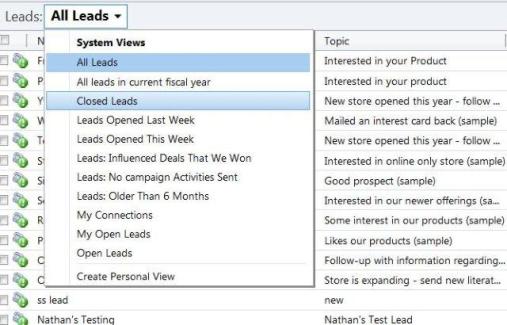
We can make things much simpler and faster by creating a personal view to see the leads for a specific product.
Step by step easy process on creating a personal view for leads defined by topic:
1. Go to all Leads view and Click on create personal view in the pick list.
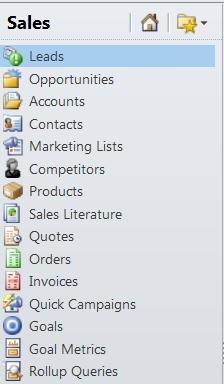
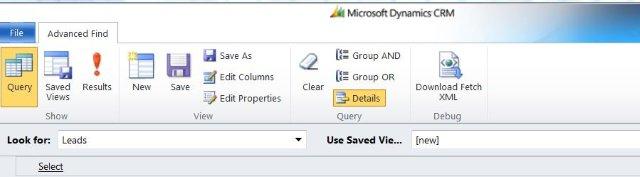
2. A new window will open for Advanced Search where we can create a new search. For query details select Leads in Look for and select new.
3. Click on the select and choose topic as we will be defining the lead search criteria by different topics of interest. In this example we will be creating a view for leads with interest in ice cream. Therefore I have defined my search to contain ice cream as the topic.
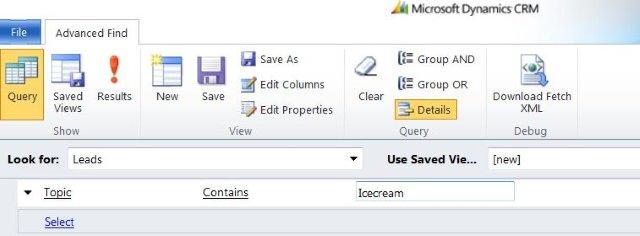
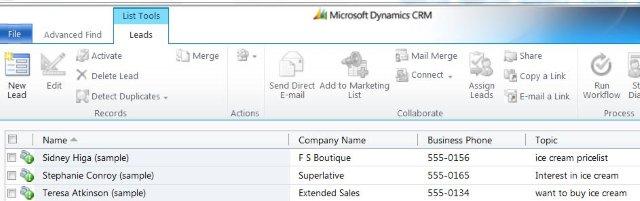
4. Once you have completed the definition for your search criteria click on Results and you will be able to view the leads with the topic you wanted.
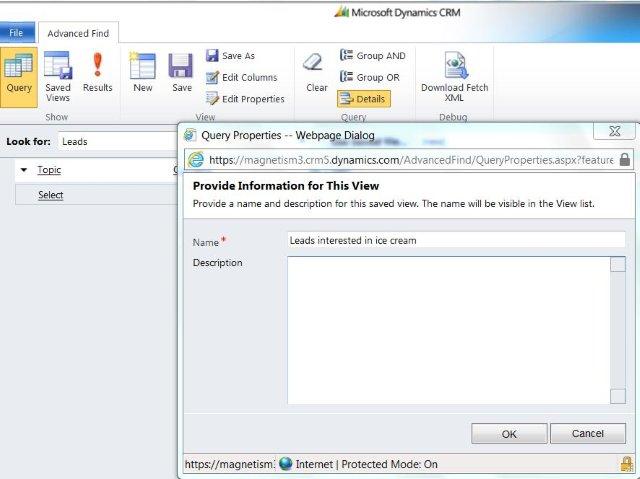
5. Go back to Advanced Find and save the view as your personal view by giving it a name which is easy for you understand in a glance.
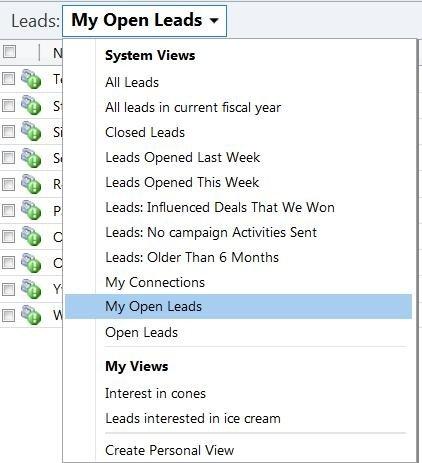
Once you have saved it, your view will be listed under my views. In this way you can create personal views for leads based on interest you receive for different products.
Similarly, you can create personal views for accounts, contact and opportunities and make it easier and faster for you to track information. If you are beginner in Microsoft Dynamics CRM 2011 and like what I have shared then please watch out for more.
Category List
Filter by Author
Adam Murchison
Alfwyn Jordan
Arthur Mandisodza
Calum Jacobs
Colin Maitland
David Mochrie
Dominic Liu
Gayan Perera
Harshani Perera
Isaac Stephens
Jaime Smith
Jared Johnson
John Barrencechea
John Eccles
Lauren Withers
Paul Nieuwelaar
Roshan Mehta
Roz Millar
Ryan Blaikie
Ryan Ingram
Sarah Coleman
Sean Roque
Shalane Williams