

How to make a Dynamics CRM field always appear as a Footer at the bottom of a Form
Simon Phillips, 07 September 2010
Just the other day, while adding some lengthy, complex java script to a form, I came across what I thought was a problem. I did end up fixing this problem but it wasn’t until I showed a few work colleagues that I realised that it wasn’t so much a problem but rather a cool feature if you are in the need for it.
That feature is making a field always appear at the bottom of the form, or as we describe it, as a footer on the form.
This is useful if you want a field on the form, but don’t want it to be the users primary focus point. For example, if you have fields on the form that only certain people in the business fill in, like admin staff, this will make the form still read clearly but provide a gap between general entry point and the admin entry point.
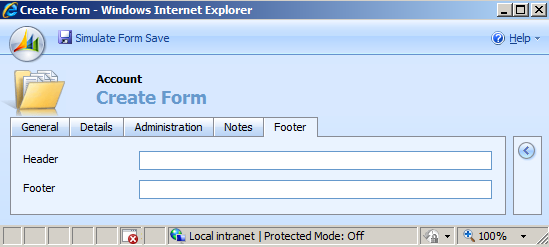
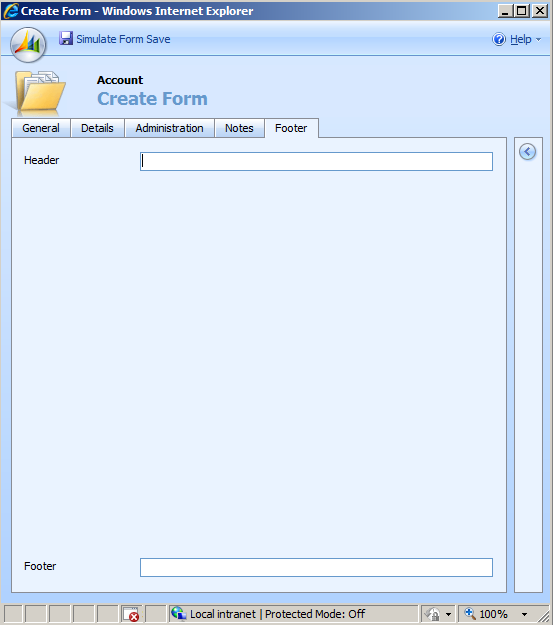
To achieve this you will need to create the following attributes:
• The fields that will be the Header
• The fields that will be in the Footer
• An ntext field that will cause this to happen.
Place all these fields on the form with the ntext field being just above what you want to be the footer. See below for an example.
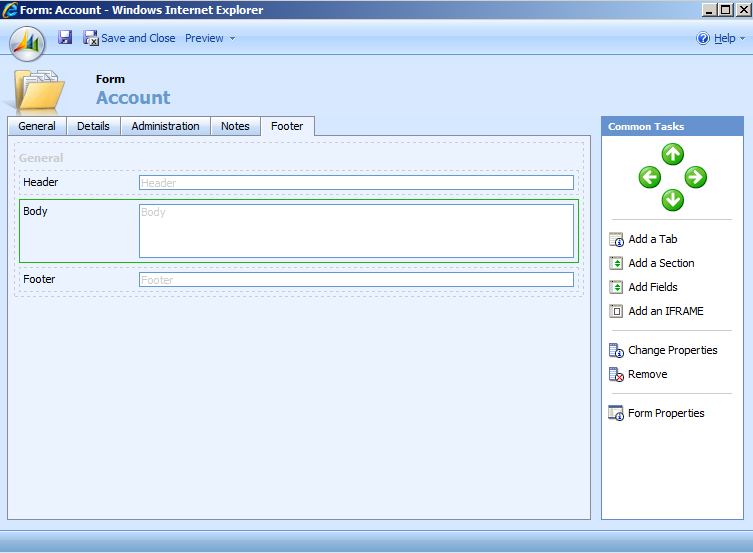
Now for some formatting that you need to apply to the ntext field. Open the properties of the ntext field and change the following; on the formatting tab set number of rows to minimum (Which is 1) and tick “Automatically expand to use available space”. The form should now look like the following.
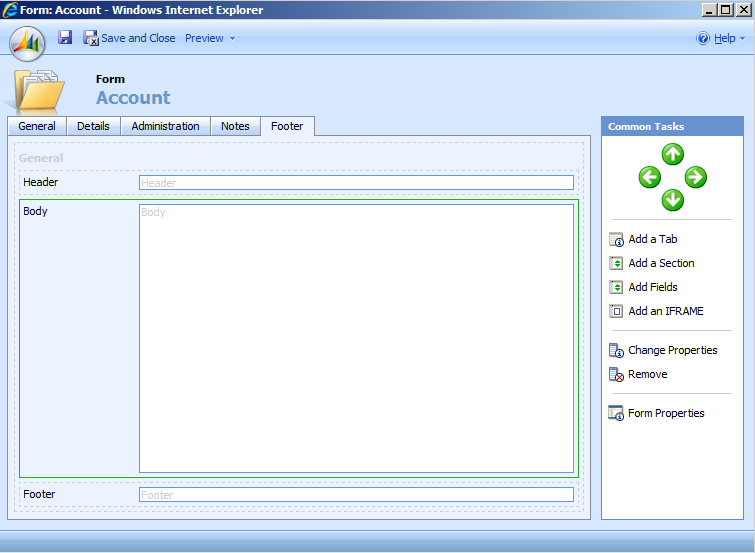
On the onload event you now need to hide the ntext field so that you cannot see it when you open the form.
You can do this with either of the following code:
crmForm.all.<entityname>_c.style.display = 'none';
crmForm.all.<entityname>_d.style.display = 'none';
Outcome:
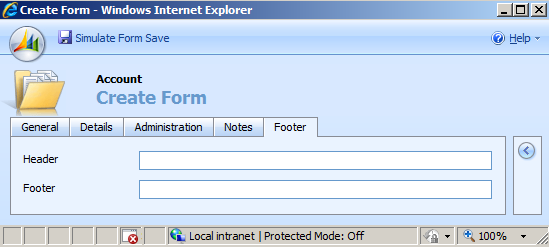
or this
crmForm.all.<entityname>_c.style.visibility = 'hidden';
crmForm.all.<entityname>_d.style. visibility = 'hidden';
Outcome:
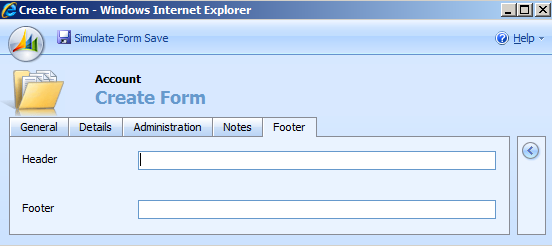
It is up to you if you want to to have the footer directly below the previous field or not.
Category List

Filter by Author
Adam Murchison
Alfwyn Jordan
Arthur Mandisodza
Calum Jacobs
Colin Maitland
David Mochrie
Dominic Liu
Gayan Perera
Harshani Perera
Isaac Stephens
Jaime Smith
Jared Johnson
John Barrencechea
John Eccles
Lauren Withers
Paul Nieuwelaar
Roshan Mehta
Roz Millar
Ryan Blaikie
Ryan Ingram
Sarah Coleman
Sean Roque
Shalane Williams